
1. Introduction: Why Every Millisecond Matters
The Psychology of Speed: How Users React to Slow Websites
In a digital landscape dominated by impatience, speed is a silent salesman. Users make subconscious judgments about a website within milliseconds. A delay of even one second can feel like an eternity, eroding trust and triggering abandonment. Studies show that over 50% of visitors will leave a page that takes more than three seconds to load. Every sluggish moment chips away at credibility and conversion potential.
Google’s Core Web Vitals and the Link Between Speed and SEO
Google’s Core Web Vitals—Largest Contentful Paint (LCP), First Input Delay (FID), and Cumulative Layout Shift (CLS)—act as the yardsticks for performance. Faster sites don’t just please users; they rank higher. Page speed has evolved from a technical metric to an SEO cornerstone, influencing visibility, dwell time, and overall engagement.
What “Under 2 Seconds” Really Means for Conversions and Engagement
Two seconds is the golden threshold. Below it, engagement surges; above it, bounce rates climb exponentially. Achieving this speed isn’t merely technical—it’s strategic. It’s about crafting a seamless digital experience that keeps users engaged, converting visitors into loyal customers.
2. Understanding What Slows Down a WordPress Site
Common Culprits Behind Sluggish Performance
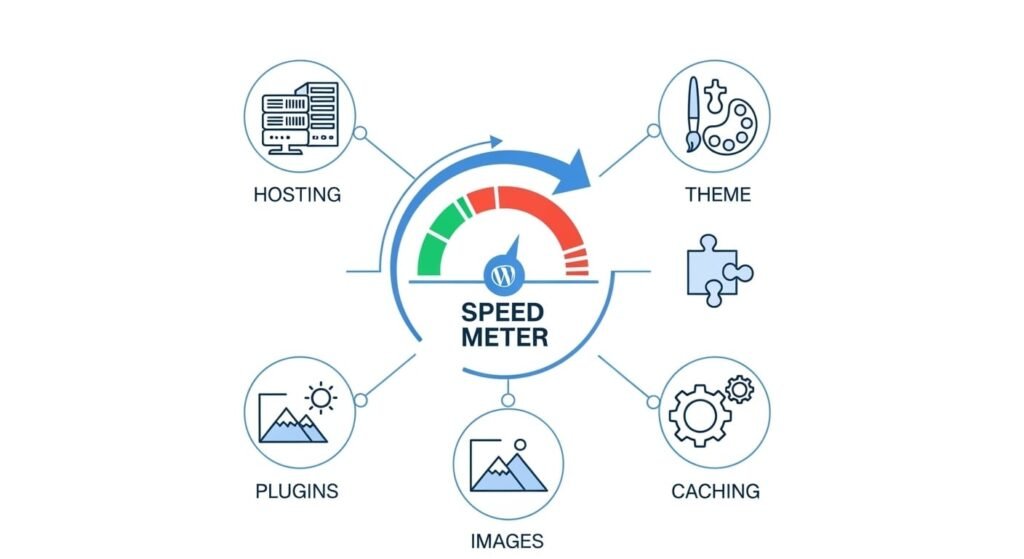
Heavy themes, unoptimized images, excessive plugins, and inefficient hosting often conspire to slow your site. Even minor misconfigurations—like redundant scripts or oversized databases—can sabotage loading times.
How Hosting, Plugins, and Media Each Play a Role
Hosting sets the foundation. A weak server amplifies every inefficiency above it. Plugins and media act as weight—useful but potentially burdensome. Together, they dictate the rhythm of your site’s performance.
Tools You’ll Need for Diagnosing Speed Issues
Tools like Google PageSpeed Insights, GTmetrix, and WebPageTest reveal the culprits behind latency. Combine them with server logs and database analysis tools for a complete performance autopsy.
3. Measure Before You Optimize: Benchmarking Your Site’s Speed
Using Google PageSpeed Insights Effectively
PageSpeed Insights delivers a snapshot of your site’s health—grading mobile and desktop separately. Use the data, not the score alone. Focus on actionable recommendations like reducing render-blocking scripts or optimizing images.
GTmetrix, Pingdom, and WebPageTest: How to Interpret Results
GTmetrix offers waterfall charts to identify load sequences. Pingdom provides simplified reports, while WebPageTest allows real-world simulations from global servers. Together, they form a holistic diagnostic toolkit.
Identifying Your “Time to First Byte” (TTFB) and Why It Matters
TTFB measures how quickly your server responds to a request. A slow TTFB signals backend inefficiencies. Aim for under 200ms to ensure responsiveness from the very first interaction.

4. Choose the Right Foundation: Fast WordPress Hosting
Shared vs. VPS vs. Managed WordPress Hosting
Shared hosting is economical but crowded. VPS offers more control, while managed WordPress hosting delivers optimized performance with automatic updates and caching. The right choice depends on your traffic and technical expertise.
Features to Look for in a Performance-Optimized Host
Look for SSD storage, HTTP/2 support, built-in caching, and a global data center network. A host that uses LiteSpeed or NGINX over Apache often provides superior efficiency.
Recommended Hosting Providers for Sub-2-Second Load Times
Kinsta, WP Engine, and SiteGround consistently deliver lightning-fast results. Their architecture is tailored for WordPress, combining speed, security, and scalability.
5. Optimize Your WordPress Theme for Speed
How Bloated Themes Can Destroy Performance
Themes packed with animations, sliders, and unnecessary scripts weigh down your site. A beautiful design means little if it loads slowly.
Lightweight Themes Built for Speed
Themes like Astra, GeneratePress, and Blocksy emphasize efficiency without compromising aesthetics. They load minimal resources, offering flexibility with speed at the core.
Removing Unnecessary Theme Elements and Scripts
Strip away features you don’t use—fonts, sliders, or demo content. Disable bundled scripts through your functions.php file or a script management plugin.
6. Minimize Plugin Bloat Without Losing Functionality
The Dangers of “Plugin Overload”
Every plugin adds overhead—more requests, more database calls. Over time, plugin accumulation turns sleek sites into sluggish beasts.
How to Audit and Disable Unused Plugins Safely
Deactivate and test plugins individually to identify performance offenders. Tools like Query Monitor help visualize plugin impact.
Essential Performance Plugins Worth Keeping
WP Rocket, Perfmatters, and Asset CleanUp are among the few that justify their existence by boosting speed rather than hindering it.
7. Compress and Optimize Images Without Losing Quality
Ideal Image Formats for the Web
WebP and AVIF outperform traditional formats, offering superior compression and clarity. SVGs are ideal for icons and logos.
Tools and Plugins for Automated Image Optimization
Use plugins like ShortPixel, Imagify, or Smush to automate compression. They integrate seamlessly and maintain visual fidelity.
Lazy Loading: How and When to Implement It
Lazy loading delays image rendering until necessary, conserving bandwidth. However, avoid overuse on above-the-fold content to prevent visual lag.
8. Leverage Browser Caching and Server Caching
Difference Between Browser Caching and Server Caching
Browser caching stores static files locally, while server caching delivers pre-rendered pages. Together, they reduce redundant processing.
How Caching Cuts Load Time Dramatically
By eliminating repetitive data requests, caching accelerates response times exponentially, ensuring instant content delivery.
Best Caching Plugins and Setup Recommendations
WP Rocket and W3 Total Cache lead the pack. Configure rules for static assets and database caching to achieve peak efficiency.
9. Minify and Combine Your CSS, JavaScript, and HTML
How File Minification Speeds Up Your Site
Minification strips out whitespace, comments, and unnecessary characters, shrinking file sizes and accelerating rendering.
Tools and Plugins to Automate the Process
Autoptimize, Fast Velocity Minify, or WP Rocket can handle minification and file concatenation automatically.
Avoiding Common Pitfalls Like Broken Layouts
Always test minified assets in staging environments to prevent conflicts between scripts and theme dependencies.
10. Use a Content Delivery Network (CDN)
What a CDN Is and How It Works
A CDN distributes your site’s content across multiple global servers. When users visit, they’re served data from the nearest node, slashing latency.
Top CDN Services for WordPress
Cloudflare offers a free entry point, while BunnyCDN and KeyCDN deliver advanced configurations with pay-as-you-go pricing.
How to Configure Your CDN Correctly
Integrate via plugin or directly through your host. Ensure proper DNS propagation and SSL configuration for seamless delivery.
11. Optimize Your Database for Faster Queries
Why Database Bloat Happens and How to Fix It
Revisions, spam comments, and transients accumulate over time, swelling database size. Regular cleanup keeps queries lean and quick.
Plugins for Cleaning Up Revisions and Overhead
WP-Optimize and Advanced Database Cleaner automate the decluttering process safely.
Scheduling Regular Database Maintenance
Schedule monthly cleanups to prevent buildup and maintain consistent performance.
12. Reduce HTTP Requests and External Scripts
How Third-Party Scripts Slow Down Your Site
Each script—analytics, ads, or widgets—adds load time. Excessive external dependencies create latency and block rendering.
Techniques for Deferring or Delaying Script Loading
Defer non-critical scripts to load after the main content. Use asynchronous loading for analytics and tracking codes.
Managing Fonts, Analytics, and Embeds Efficiently
Host Google Fonts locally, use lightweight analytics like Plausible, and embed videos with static thumbnails.
13. Implement Lazy Loading for Images and Videos
How Lazy Loading Works and Its SEO Implications
Lazy loading improves load time but must be implemented properly to avoid impacting crawlability. Google recognizes native lazy loading as SEO-friendly.
Best Lazy-Load Plugins and Native Browser Support
Native lazy loading is now supported by most browsers, but plugins like a3 Lazy Load provide greater control.
When Not to Use Lazy Loading
Avoid it for hero images or key visuals—these should load immediately for aesthetic and functional reasons.
14. Use GZIP or Brotli Compression
What Compression Does to Your Site’s Files
Compression reduces file sizes before transmission, speeding up data transfer dramatically.
How to Enable GZIP/Brotli on Your Server
Most hosts support compression via cPanel or .htaccess configuration. Brotli often provides better ratios than GZIP.
Verifying That Compression Is Working Properly
Use tools like CheckGZIPCompression.com to confirm successful implementation.
15. Optimize for Mobile Speed
Mobile-First Indexing and Performance Differences
Google indexes the mobile version first, making mobile speed non-negotiable. Optimize layouts for smaller screens and touch interactions.
Reducing Render-Blocking Resources on Mobile
Inline critical CSS and defer JavaScript to enhance initial render.
AMP vs. Responsive Optimization
AMP can be overkill for some sites; a well-optimized responsive design often achieves equal results with more flexibility.
16. Improve Server Response Time
How DNS, Caching, and Database Tuning Affect Response Times
DNS resolution speed, caching policies, and database query efficiency all shape server response.
Server-Level Tweaks for Apache, NGINX, and LiteSpeed
Enable HTTP/2, adjust keep-alive settings, and optimize buffer sizes. LiteSpeed servers, in particular, excel at dynamic caching.
The Impact of PHP Versions and Memory Limits
Upgrading to PHP 8+ yields instant gains. Adjust memory limits to accommodate heavier processes without bottlenecks.
17. Use a Performance-Focused WordPress Configuration
Editing wp-config.php for Faster Performance
Disable debugging, set post revisions to minimal values, and define optimal memory limits directly in wp-config.php.
Disabling Heartbeat API and Autosaves
Limit heartbeat intervals and autosave frequency to reduce server strain during content editing.
Setting Up Object Caching for High-Traffic Sites
Use Redis or Memcached to store query results and reduce database load.
18. Test and Monitor Performance Continuously
How Often to Test Your Site’s Speed
Monthly audits keep your performance consistent. Major updates or plugin changes warrant immediate re-testing.
Setting Up Uptime and Speed Monitoring Tools
Use services like UptimeRobot or Pingdom for constant vigilance. They alert you to issues before users notice.
Tracking Progress After Each Optimization
Document baseline metrics before and after each tweak to measure real improvements.
19. Advanced Speed Techniques for Power Users
Preloading Key Resources for Faster Rendering
Preload fonts, images, and critical CSS for instant availability during rendering.
Using Critical CSS and Asynchronous Loading
Deliver only the above-the-fold CSS first, deferring the rest for later.
Prefetching DNS Requests for Better Perceived Performance
Prefetch external domains like analytics or font providers to cut DNS lookup time.
20. Troubleshooting Common Speed Issues
What to Do When Optimization Breaks Your Layout
Use browser dev tools to isolate the culprit. Revert changes one at a time until the issue vanishes.
Rolling Back Plugin Updates Safely
Maintain backups before any update. If issues arise, restore from backup or use version control plugins like WP Rollback.
Finding Performance Bottlenecks Through Logs
Review access and error logs for recurring delays or failed requests.
21. Case Study: From 5 Seconds to 1.8 Seconds
Step-by-Step Breakdown of a Real-World Optimization
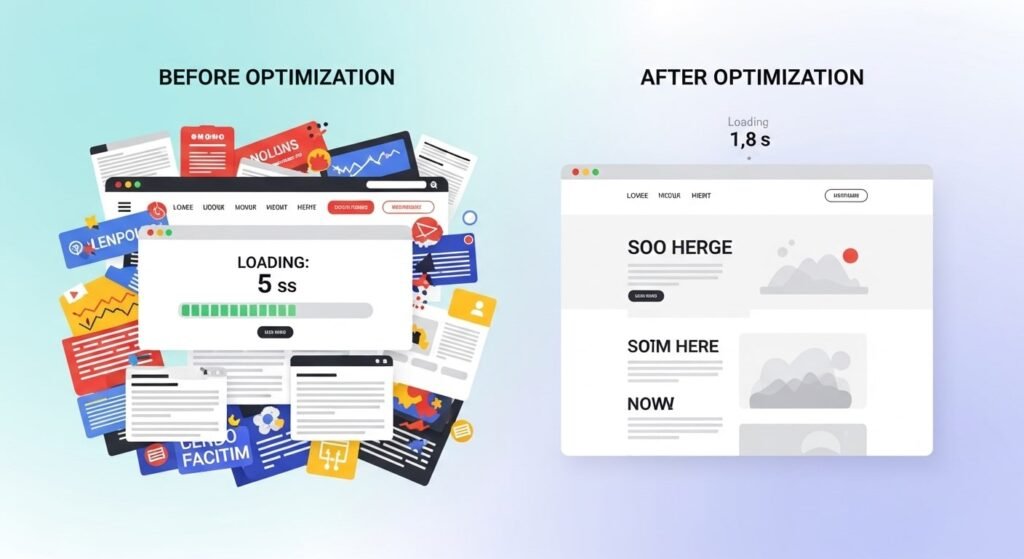
A business blog suffering from 5-second loads reduced it to 1.8 seconds by migrating to managed hosting, minifying scripts, and implementing CDN caching.
The Tools Used and the Measurable Improvements
Using GTmetrix and WebPageTest, the site saw an 80% drop in HTTP requests and a 70% reduction in image weight.
Key Takeaways and Lessons Learned
Every second trimmed came from meticulous testing and a layered approach—no single fix, but a symphony of small optimizations.
22. Conclusion: Achieving and Maintaining Lightning-Fast Performance
Why Speed Is an Ongoing Process, Not a One-Time Task
Websites evolve—content grows, plugins update, traffic scales. Continuous vigilance ensures sustained velocity.
Creating a Maintenance Plan for Sustained Performance
Schedule monthly audits, quarterly database cleanups, and annual hosting evaluations.
Final Checklist: What to Review Before Launch
- Verify caching and compression
- Test mobile and desktop load times
- Validate CDN integration
- Confirm no render-blocking resources remain
A WordPress site that loads in under two seconds is not a luxury—it’s a necessity in the modern digital ecosystem. Fast sites convert better, rank higher, and leave lasting impressions. Speed, in essence, is the heartbeat of the web.